The Best Snapchat Filters for Selfies (Updated 2026)
Best Snapchat filters for selfies in 2026: ranked Lens Explorer picks, how to use them on your face, and how to make your own. Updated 2026.
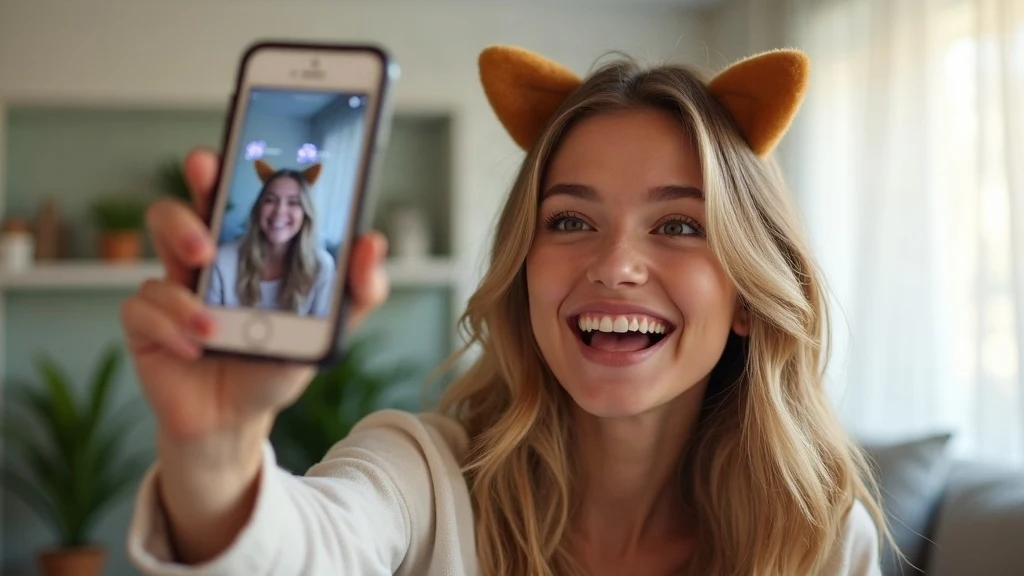
best snapchat filters for selfies: Best Snapchat filters for selfies in 2026: ranked Lens Explorer picks, how to use them on your face, and how to make your own. Updated 2026.
Updated 2026
The best Snapchat filters for selfies are search terms you can find in Lens Explorer, not one single permanent filter. Search 'Glow', 'Smooth', 'Anime', 'Vintage', 'Butterfly', and 'Ring Light' to get the six most effective selfie looks in 2026. If you only have time for one, search 'Glow', tap the first Lens, keep your face in the front camera circle, and press the shutter.
Snapchat calls the face-tracking effects 'Lenses' and reserves the word 'Filter' for overlays like time, location, and color. People still search for 'best Snapchat filters for selfies', so this guide uses the more common wording while being clear about which type does what.
Key Selfie Filter Statistics
The numbers show why Snapchat selfie filters attract so much attention. The AR effects in Lens Explorer are one of the main reasons people open the camera every day.
| Statistic | Number | Source (year) |
|---|---|---|
| Snapchat daily active users | 453 million | Snap Inc., Q4 2024 |
| Snapchat users who engage with AR on an average day | More than 250 million | Snap Inc., 2023 |
Those numbers come from Snap's official investor and product materials and are also shared on the Snapchat website. The exact counts change slightly with every earnings report, but the trend stays the same: face filters are the center of the app.
Best Snapchat Filters for Selfies, Ranked by Effect
The best selfie filter depends on three things: your lighting, your goal, and how much skin texture you want to show. Skin smoothing works best when the light is bright, and glow filters solve dull camera color. The table below gives the fastest search terms to type into Lens Explorer.
| Look | Search term | What it does | Best lighting |
|---|---|---|---|
| Soft glow | Glow | Brightens the skin, adds a clean sheen, evens tone | Window light or ring light |
| Skin smoothing | Smooth | Softens lines and pores while keeping strong face shape | Even indoor light |
| Anime selfie | Anime | Adjusts eyes and jawline for an illustrated look | Bright room |
| Warm vintage | Vintage | Adds warm film color, subtle grain, and faded contrast | Golden hour |
| Butterfly beauty | Butterfly | Adds 3D butterfly placement and light makeup enhancements | Any or free with background |
| Studio light | Ring Light | Adds a bright circular highlight around the face | Dark background |
The Lens catalog rotates daily. A search term opens different options for different users or after a Lens gets taken down. If the exact effect you want does not appear, pick the next Lens with the same visual style.
How to Use Snapchat Filters on a Selfie
Face filters on Snapchat apply before you take the photo, and overlays apply afterward, so each type needs a separate step.
- Open Snapchat on your phone and switch to the front camera.
- Tap the smiling face icon or the three dots next to the shutter.
- Tap the magnifying glass in the Lens Explorer screen.
- Type your search term, for example 'Glow' or 'Smooth'.
- Tap the Lens preview and wait for it to track your face.
- Press and hold the shutter to take the selfie.
For a static color or location overlay, take the photo first, then tap the filter icon on the right side of your preview. Swipe through the overlay list until you find a color grade, temperature, or location tag you like. Most of these overlays do not touch your face. They only change the photo color or add text.
If a Lens disappears from your recent tray, search for it again or browse the full Lens Explorer. For a more complete tour of the search controls, see our Snapchat filter search guide on the same site.
Snapchat AR Filters and Lenses: What Is the Difference?
Snapchat AR filters are Lens, and the Lens is the only face effect category in Snapchat's official language. The app uses the camera to map your face, then draws the effect on top before you capture.
The reason creators call every Lens a filter is visual memory from older Snapchat versions. Back then a filter was mostly a color overlay. Today, the AR technology detects faces, gestures, and expressions, and the result matches the newest generation of selfie retouching tools.
We believe that reinventing the camera represents our biggest opportunity to improve the way people live and communicate.
Snap co-founder and chief executive Evan Spiegel wrote that in Snap's 2017 IPO letter. It explains why selfie lenses get advanced so quickly and why you should expect the best filters to keep changing.
What Is a Snapchat Geofilter?
A Snapchat geofilter is a location-based overlay, not a beauty effect. It appears when you reach a specific city, and it can show the place name, an event logo, or a location tag. Geofilters usually appear after you take the photo, and a few past photo color strokes also show up in that same list.
Businesses and event planners can pay to create a geofilter for a custom area. If you just want a face filter for selfies, a geofilter is usually not the tool you need. Use it as a sticker applied to the corner of a photo.
How to Make Your Own Snapchat Filter
You can make a selfie filter for free with Snapchat Lens Studio, the official creator tool from Snap. It lets you build a face effect, upload it, and publish it to lens makers under your own Lens profile.
- Open Lens Studio from Snapchat and sign in with the Snap account.
- Select a new Face project.
- Drag a 3D object, animation, or effects into the face tracker.
- Preview the effect with your webcam.
- Test the lens for tracking and for the correct capture.
- Submit it through the Lens Studio dashboard and wait for review.
After the review passes, the Lens appears in your saved lenses and you can paste it to your Snapcode. You do not need to write code for a simple selfie filter. The file chip, plus some of the starter projects, is enough, and the dashboard shows the changes on your own face in real time.
Snapchat Tips and Tricks for Better Selfie Filters
Great filters look even better when the face receives the light is clean. The camera on Snapchat first matches your skin tone and exposes the photograph, so small adjustments in framing count more than which filter works.
- Clean the front lens with a soft cloth before every selfie.
- Put the main light facing you, not behind you, so the filter has details to work.
- Leave a little head room in the frame so the Lens can choose the face shape.
- Tap the preview once to check which feature is tracked.
- Use 'butterfly' quickly when you want sparkle but only a few seconds of setup.
- Save good selfies to Memory so you can re-apply overlays later.
If you want to keep the selfie for later with your filters already applied, use the Snapchat Memories guide to keep the version in the correct quality. More daily tricks live in the Snapchat Tricks category.
Snapchat Selfie Filter FAQ
What is the best the snapshot filter for selfies?
The easiest selfie filter to recommend is the 'Glow' Lens. It gives a soft, light, even skin tone and works on most face types. Search for it in Lens Explorer, tap the first result, and shoot.
Why does Snapchat call face filters 'Lenses' and not 'Filters'?
Because the face-tracking effect is called Lens in the official Snapchat app. People outside the training call all of them filters, but the app shows you the Lens icon and labels when building search results.
How do I get more selfie filters on Snapchat?
Open the smiley camera icon in the camera, tap the magnifying glass, and search for terms like 'Glow', 'Smooth', 'Vintage', 'Anime', 'Butterfly', or 'Ring Light'. New Lenses rotate every few days, so search again often.
Can I use a Snapchat selfie filter on a photo already in my camera roll?
The effect that tracks your face must be applied as no face filter in the live camera. You can import a photo into memories inside the app, but a true AR Lens will not follow an already-stored face photo. Only simple color filters apply after capture.
Do I have to pay for Snapchat selfie filters?
No. The Lens Explorer and the popular Glow, Smooth, Anime, and Vintage effects are free. Snapchat also offers on-demand branded Lenses, but the default selfie effects you search for are free to use.
What is the fastest way to make a premiere filter?
Use Snapchat Lens Studio. The free tool is listed above with sample face projects, and you can publish your first Lens after you submit it for review. It is the quickest way to get a custom selfie filter without learning 3D software first.
Next story
How to Search for Snapchat Filters: A Beginner's Guide
Learn how to search for Snapchat filters step by step. Find lenses, geofilters, and community filters using the carousel and Explore bar. Fix filters not working.